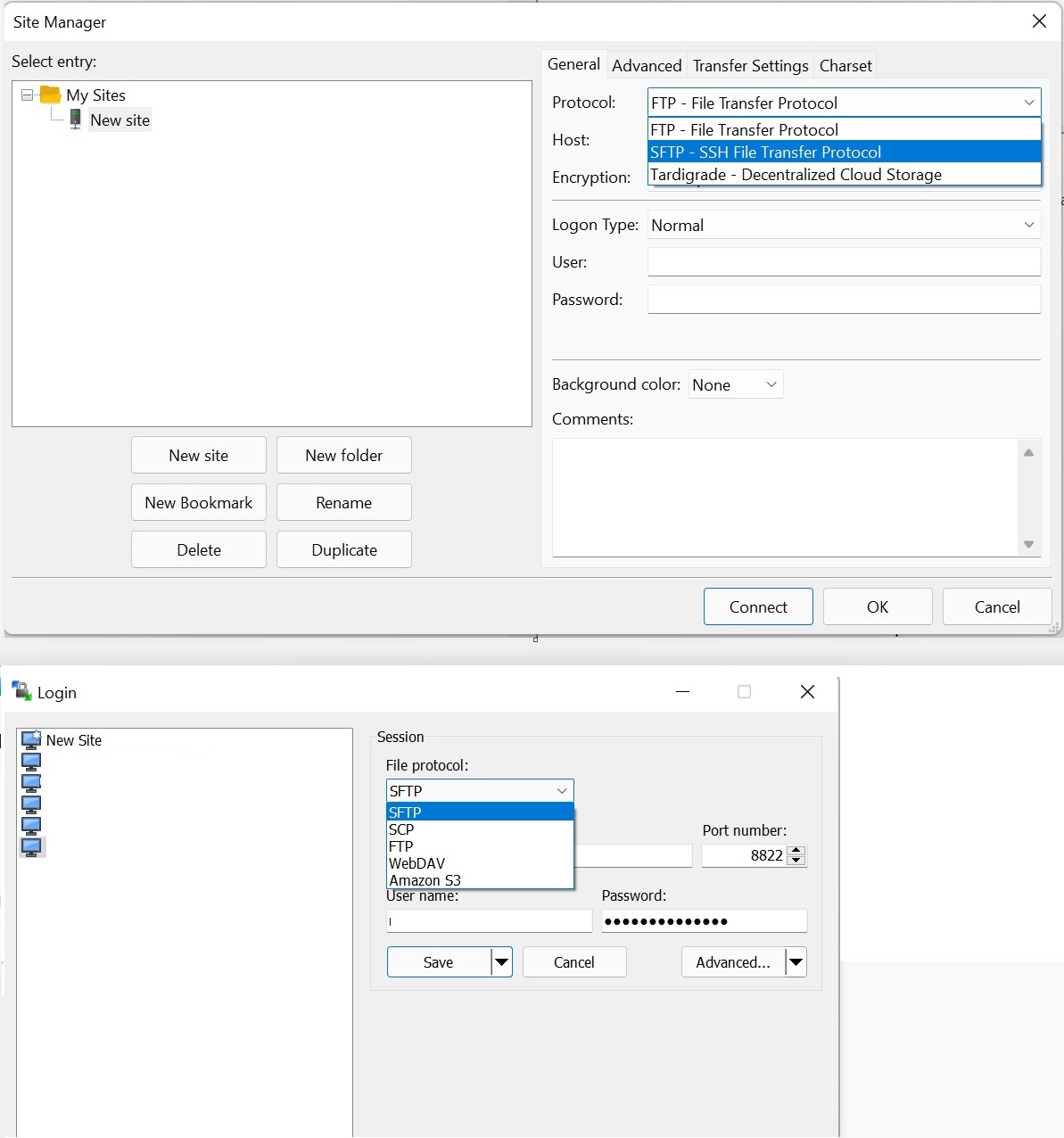

This guide will help you to connect to your servers FTP and SFTP Service:
Download Winscp or Filezilla FTP client or any other FTP program at your choice and install it on your computer
Go to your control panel and copy the FTP IP & PORT below the connection info or press the Server Details button on your control panel. Some games don't have Server Details button support, the Username and Password is the same you use to log in to your control panel.

Open Filezilla and paste the FTP IP and PORT in the Host field IE example use: sftp://51.77.117.62:8822 and for Username and Password fields, use the same username and password you use to login to your control panel.
Press the QuickConnect button and you are now connected to your server FTP
If your server isn't prefixed/using SFTP simply use the IP:PORT in their respective fields in filezilla.
You can now download or upload files to your server by dragging from left to right window, on the right it's your server folder and files, on the left, it's your computer folders and files.
The upload of some files extensions like (.DLL / .EXE / .BAT) it's forbidden due to security measures if you need to upload any of that files just contact our support.
If your TLS connection times out because you are behind NAT/Firewall please try using the site manager and setting the security encryption to Plain FTP or SecureFTP
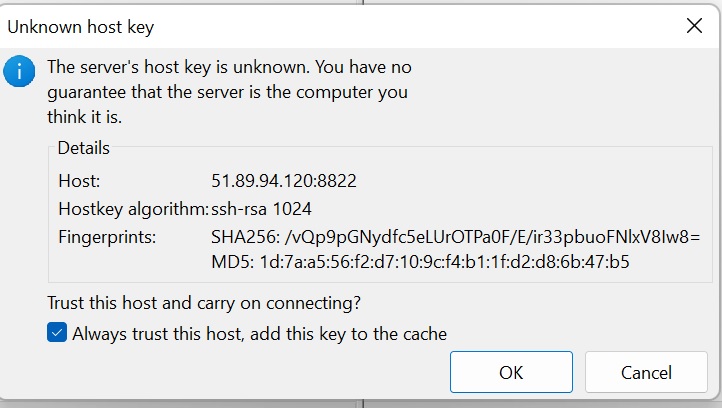
If your server uses SFTP you may need to use a site manager in your ftp client and select this manually along with the user info as detailed here in winscp + filezilla clients: