
This scheduled task will send a warning message at 10 minutes / 5 Minutes / 2 Minutes / 1 Minute, save the world, and restart the server and perform a backup.
- If you want also to send warning messages to your discord, check out this guide: How to setup discord notification messages on your Palworld dedicated game server
1. SETUP A 6 HOURS RESTART EXAMPLE
- Go to the Scheduled Tasks button in your game panel
- Create a new Scheduled Task, select the Backup and Restart with Messages option
- Give it a name of your choice, 6 Hours Restart for example
- Select the date/hour you want to next restart will happen(*)
- Select Recur Every: 1 Days
- Select the Repeat task option
- Select Repeat Every: 6 Hours
- Select For: 24 Hours
- Save the task
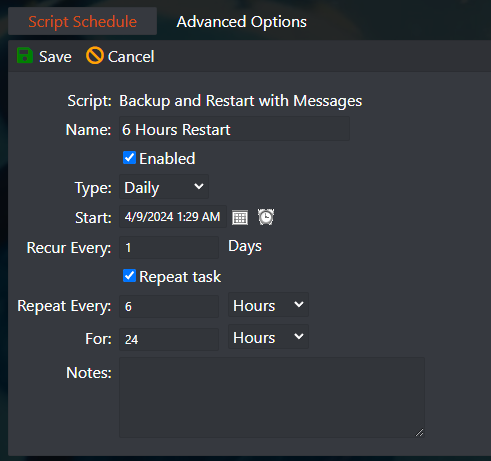
In this example it will restart your server every 6 hours, if you want any other number of hours, just change the Repeat Every 6 hours to any number of hours of your choice.
(*) Servers restart based on the machine's local hour, you can view the machine's local hour under Server Details > Machine Local Time button, if needed adjust your game panel profile timezone to match the machine's local hour by clicking on your name on the top right corner > My Profile > Timezone.
2. ADJUST THE RESTART MESSAGES
- Go to the Service Settings button
- Tick the Edit option on the Scheduled restart messages option, change the messages and press Execute at the end
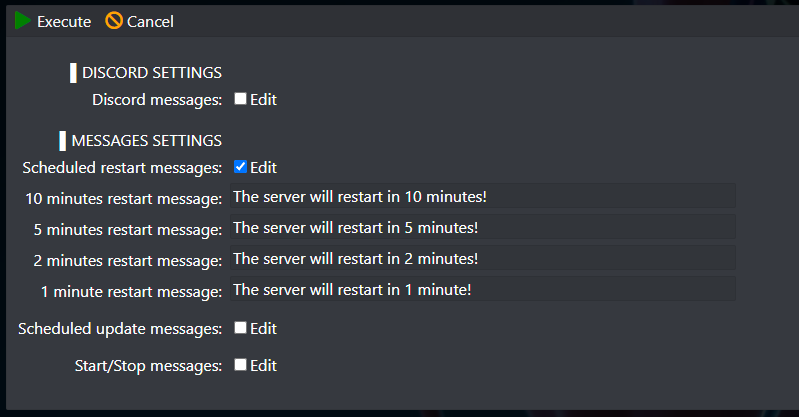
Palworld broadcast messages are limited to 48 characters.


